









How to Transfer EPUB Files to Your Kindle: The 2026 Definitive Guide
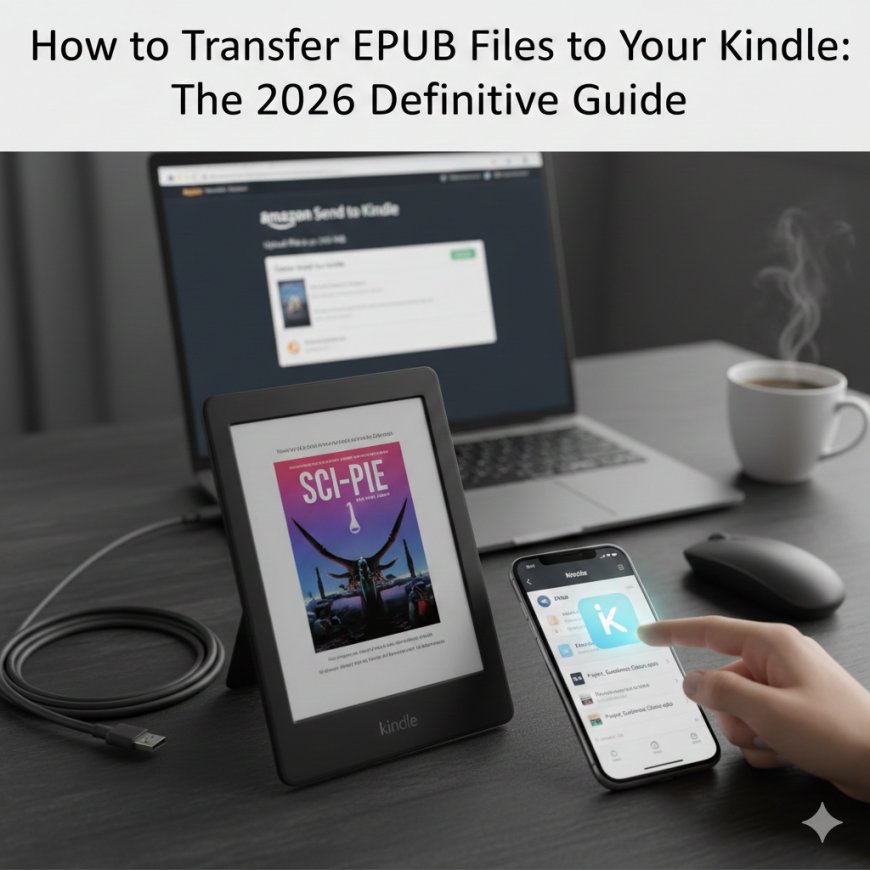
Moving into 2026, the way we manage digital libraries has become more streamlined than ever. For years, Kindle users faced the "EPUB wall"—the frustration of owning the world’s most popular ebook format but being unable to read it on the world’s most popular e-reader without complex conversions.
Today, that barrier is gone. Amazon has fully embraced EPUB through its cloud processing services. Whether you are using the latest Kindle Colorsoft or a trusty Paperwhite, here is the definitive guide on how to transfer EPUB files to your Kindle in 2026.
1. The Gold Standard: Send to Kindle (Web)
For most users in the US, the web-based "Send to Kindle" portal is the fastest and most reliable method. It now handles files up to 200 MB, which is plenty for even the most image-heavy EPUBs or graphic novels.
-
Step 1: Visit the
Amazon Send to Kindle -
Step 2: Sign in with your Amazon account.
-
Step 3: Drag and drop your EPUB file into the upload box.
-
Step 4: Ensure "Add to your library" is checked so the book syncs across all your Kindle devices and apps.
Why it works: Amazon’s servers automatically convert the EPUB into a Kindle-native format (like KF8) while preserving your ability to change fonts, margins, and bold settings.
2. The Mobile Shortcut: The Kindle App
If you have an EPUB saved on your iPhone or Android device—perhaps downloaded from a site like Project Gutenberg—you don't even need a computer.
-
Open the Files app on your phone.
-
Locate your EPUB file and long-press it.
-
Tap Share and select the Kindle App icon.
-
A prompt will appear asking for the Title and Author. Fill these in and hit Send.
The file will appear in your library within minutes once your Kindle connects to Wi-Fi.
3. The Classic Approach: Email to Kindle
Every Kindle device has a unique, private email address. This method is perfect for sending books to a family member’s device remotely.
-
Find your address: On your Kindle, go to Settings > Your Account > Send-to-Kindle Email.
-
The Process: Attach the EPUB to a standard email and send it to that address.
-
Security Tip: Ensure the email you are sending from is added to your "Approved Personal Document E-mail List" in your Amazon account settings under Manage Your Content and Devices.
4. For Power Users: Calibre & USB-C Sideloading
If you have a massive library and prefer managing it offline, Calibre remains the essential open-source tool in 2026.
-
Connect your Kindle to your PC/Mac via USB-C.
-
Add your EPUBs to the Calibre library.
-
Click "Send to Device."
-
Calibre will detect that Kindle doesn't support EPUB natively via direct USB storage and will ask to convert it (usually to AZW3 or KFX). Click Yes.
Comparison of Methods
| Method | Max File Size | Best For... | Supports Cloud Sync? |
| Web Portal | 200 MB | Most users / Large files | Yes |
| Kindle App | N/A | Quick transfers from phone | Yes |
| 50 MB | Remote sending | Yes | |
| USB (Calibre) | Unlimited | Large libraries / No Wi-Fi | No |
Troubleshooting Tips for 2026
-
"Format Not Supported": If the service rejects your file, it may have DRM (Digital Rights Management) protection. Amazon cannot convert encrypted files from other stores (like Kobo or Apple Books).
-
Missing Covers: If your book cover isn't showing up, try sending the file via the Web Portal rather than email; Amazon’s cloud covers are more reliable through the web interface.
-
Sync Issues: Always ensure your Kindle is not in "Airplane Mode" and that "Personal Document Archiving" is turned on in your Amazon account settings.


![EPUB Download Krakatoa: The Day the World Exploded [August 27, 1883] by Simon Winchester](https://yourbooksspace.com/uploads/images/202601/image_430x256_6961144f14e08.jpg)